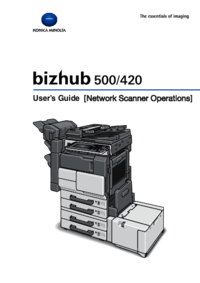
Konica-minolta bizhub 500 User Manual
Browse online or download User Manual for Printers Konica-minolta bizhub 500. Konica Minolta bizhub 500 User Manual
- Page / 218
- Table of contents
- BOOKMARKS
Rated. / 5. Based on customer reviews


- Operations 1
- OpenSSL License 3
- Original SSLeay License 4
- Contents 6
- 2 Saving Documents 6
- 6 Control Panel Settings 10
- 8 Appendix 11
- About This Manual 12
- Introduction 13
- Notation 13
- WARNING , CAUTION 14
- User’s Guides 15
- Overview of the Box 18
- Functions 18
- 1.1 Box Functions 19
- 1.2 Available Box Functions 21
- Saving Documents Chapter 2 24
- 2 Touch [Save in User Box] 30
- 2 Touch [Direct Input] 35
- 3 Touch [Save in User Box] 35
- 8 Touch [OK] 37
- 2.4 Checking the Job History 38
- Printing a Document from 40
- 2 Touch [Delete] 44
- 2 Touch [Edit Name] 45
- 2 Touch [Move/Copy] 46
- Stored” 47
- 3.6 Printing Document Data 50
- 2 Touch [Print] 51
- 1 Touch [Finishing] 53
- 2 Touch [Sort] or [Group] 53
- 1 Touch [Folding] 56
- 1 Touch [Page Margin] 57
- Single-sided document 58
- Final copy 58
- Double-sided 58
- 1 Touch [2-Sided] 59
- 2 Touch [Chapters] 59
- 5 Touch [Chapter Paper] 60
- 6 Select the paper drawer 60
- 7 Touch [OK] 60
- REPORTREPORT 62
- 1 Touch [Cover Mode] 63
- 4 Select the paper drawer 63
- One-side documents 64
- Two-sides documents 64
- Insert sheet 64
- “Blank” selected 64
- “Copy” selected 64
- 1 Touch [Insert Sheet] 65
- 4 Specify the paper drawer 66
- 1 Touch [Stamp/Overlay] 67
- 2 Touch [Date/Time] 67
- 2 Touch [Page #] 70
- 2 Touch [Set Numbering] 72
- 2 Touch [Overlay] 74
- Parameter Description 75
- 2 Touch [Built-in Stamp] 76
- 3 Select the stamp 76
- 2 Touch [Watermark] 78
- 3 Select the text 78
- 1 Touch [Edit Margin] 79
- 2 Touch [Proof Print] 80
- 3.8 Combined Printing 81
- 1 Touch [Combine] 82
- 1 Touch [Date/Time] 89
- 1 Touch [Built-in Stamp] 91
- 2 Select the stamp 91
- 1 Touch [Overlay] 93
- 1 Touch [Set Numbering] 94
- 1 Touch [Page #] 96
- 1 Touch [Watermark] 98
- 2 Select the text 98
- Routing a Document 100
- Personal User Box 100
- Box/Personal User Box 101
- 4.2 Routing 102
- Scanner Operations] 103
- 4 Touch [OK] 105
- 2 Touch [Select from Group] 106
- 4 Select the destinations 107
- Setting Description 114
- 2 Touch [Document Info.] 116
- 3 Touch [OK] 117
- 2 Touch [File Type] 119
- 6 Touch [OK] 120
- 4.5 Checking the Destination 121
- 6 Touch [Close] 123
- User Box 127
- 5.2 Routing 128
- For a Advanced Search 136
- Reminder 136
- Control Panel Settings 148
- 6.2 Registering Boxes 151
- 3 Touch [3 User Box] 153
- 5 Touch [New] 154
- 7 Touch [Fwd.] 154
- 9 Touch [OK] 155
- 10 Touch [Close] 155
- Utility/ 156
- 5 Touch [Password] 160
- 6-14 bizhub 500/420 161
- 4 Touch [Close] 163
- 5 Touch [OK] 164
- 5 Restart the machine 172
- 10 Restart the machine 175
- Specifying Settings Using 176
- PageScope Web 176
- Connection 176
- Web Connection 177
- Administrator Mode 178
- 1 Start the Web browser 180
- 2 Click [Login] 186
- 7.4 Opening a Box (User Mode) 190
- 4 Click [OK] 191
- User Box Owner is changed 194
- User Box Type 194
- Owner Name 194
- New boxes can be created 196
- For public/personal boxes 196
- 3 Click [OK] 199
- 7-26 bizhub 500/420 201
- Appendix Chapter 8 206
Summary of Contents
Page 1 - Operations
User’s Guide [Box Operations Operations]
Page 2
Introductionbizhub 500/420 x-9To directly specify an SMB destination ... 5-165.4 Checking Settings Before Routing
Page 3 - OpenSSL License
4Routing a Document from a Public User Box/Personal User Box Chapter 4Routing a Document from a Public User Box/Personal User Box
Page 4 - Original SSLeay License
4Routing a Document from a Public User Box/Personal User Box4-2 bizhub 500/420Routing a Document from a Public User Box/Personal User Box Chapter 44 R
Page 5
Routing a Document from a Public User Box/Personal User Box4bizhub 500/420 4-3Routing a Document from a Public User Box/Personal User Box Chapter 44.2
Page 6 - 2 Saving Documents
4Routing a Document from a Public User Box/Personal User Box4-4 bizhub 500/420Routing a Document from a Public User Box/Personal User Box Chapter 42No
Page 7
Routing a Document from a Public User Box/Personal User Box4bizhub 500/420 4-5Routing a Document from a Public User Box/Personal User Box Chapter 43 I
Page 8
4Routing a Document from a Public User Box/Personal User Box4-6 bizhub 500/420Routing a Document from a Public User Box/Personal User Box Chapter 44.3
Page 9
Routing a Document from a Public User Box/Personal User Box4bizhub 500/420 4-7Routing a Document from a Public User Box/Personal User Box Chapter 4To
Page 10 - 6 Control Panel Settings
4Routing a Document from a Public User Box/Personal User Box4-8 bizhub 500/420Routing a Document from a Public User Box/Personal User Box Chapter 44 S
Page 11 - 8 Appendix
Routing a Document from a Public User Box/Personal User Box4bizhub 500/420 4-9Routing a Document from a Public User Box/Personal User Box Chapter 4To
Page 12 - About This Manual
4Routing a Document from a Public User Box/Personal User Box4-10 bizhub 500/420Routing a Document from a Public User Box/Personal User Box Chapter 42N
Page 13 - Notation
Introductionx-10 bizhub 500/420For Internet Explorer ...7-8For Netscape Navigator
Page 14 - WARNING , CAUTION
Routing a Document from a Public User Box/Personal User Box4bizhub 500/420 4-11Routing a Document from a Public User Box/Personal User Box Chapter 4Fo
Page 15 - User’s Guides
4Routing a Document from a Public User Box/Personal User Box4-12 bizhub 500/420Routing a Document from a Public User Box/Personal User Box Chapter 42
Page 16
Routing a Document from a Public User Box/Personal User Box4bizhub 500/420 4-13Routing a Document from a Public User Box/Personal User Box Chapter 4Di
Page 17
4Routing a Document from a Public User Box/Personal User Box4-14 bizhub 500/420Routing a Document from a Public User Box/Personal User Box Chapter 4To
Page 18 - Functions
Routing a Document from a Public User Box/Personal User Box4bizhub 500/420 4-15Routing a Document from a Public User Box/Personal User Box Chapter 4Di
Page 19 - 1.1 Box Functions
4Routing a Document from a Public User Box/Personal User Box4-16 bizhub 500/420Routing a Document from a Public User Box/Personal User Box Chapter 43
Page 20
Routing a Document from a Public User Box/Personal User Box4bizhub 500/420 4-17Routing a Document from a Public User Box/Personal User Box Chapter 44.
Page 21 - 1.2 Available Box Functions
4Routing a Document from a Public User Box/Personal User Box4-18 bizhub 500/420Routing a Document from a Public User Box/Personal User Box Chapter 4Th
Page 22
Routing a Document from a Public User Box/Personal User Box4bizhub 500/420 4-19Routing a Document from a Public User Box/Personal User Box Chapter 4Sp
Page 23
4Routing a Document from a Public User Box/Personal User Box4-20 bizhub 500/420Routing a Document from a Public User Box/Personal User Box Chapter 4To
Page 24 - Saving Documents Chapter 2
Introductionbizhub 500/420 x-11About This ManualThis user’s guide covers the bizhub 500/420 box functions.The Box functions can only be used if the op
Page 25
Routing a Document from a Public User Box/Personal User Box4bizhub 500/420 4-21Routing a Document from a Public User Box/Personal User Box Chapter 44
Page 26
4Routing a Document from a Public User Box/Personal User Box4-22 bizhub 500/420Routing a Document from a Public User Box/Personal User Box Chapter 44.
Page 27
Routing a Document from a Public User Box/Personal User Box4bizhub 500/420 4-23Routing a Document from a Public User Box/Personal User Box Chapter 42
Page 28
4Routing a Document from a Public User Box/Personal User Box4-24 bizhub 500/420Routing a Document from a Public User Box/Personal User Box Chapter 45
Page 29
Routing a Document from a Public User Box/Personal User Box4bizhub 500/420 4-25Routing a Document from a Public User Box/Personal User Box Chapter 43
Page 30 - 2 Touch [Save in User Box]
Routing a Document from a Public User Box/Personal User Box Chapter 4
Page 31
5Routing a Document from the System User Box Chapter 5Routing a Document from the System User Box
Page 32
5Routing a Document from the System User Box5-2 bizhub 500/420Routing a Document from the System User Box Chapter 55 Routing a Document from the Syste
Page 33
Routing a Document from the System User Box5bizhub 500/420 5-3Routing a Document from the System User Box Chapter 55.2 RoutingDocument data saved in a
Page 34
5Routing a Document from the System User Box5-4 bizhub 500/420Routing a Document from the System User Box Chapter 5Available SettingsThe following set
Page 35 - 3 Touch [Save in User Box]
Introductionx-12 bizhub 500/420NotationProduct Name Notation in the Manualbizhub 500/420 This machine, 500/420Microsoft Windows 98 Windows 98Microsoft
Page 36
Routing a Document from the System User Box5bizhub 500/420 5-5Routing a Document from the System User Box Chapter 53 Select the document, and touch [R
Page 37 - 8 Touch [OK]
5Routing a Document from the System User Box5-6 bizhub 500/420Routing a Document from the System User Box Chapter 55.3 Specifying DestinationsTo speci
Page 38 - 2.4 Checking the Job History
Routing a Document from the System User Box5bizhub 500/420 5-7Routing a Document from the System User Box Chapter 5To select a destination from a grou
Page 39
5Routing a Document from the System User Box5-8 bizhub 500/420Routing a Document from the System User Box Chapter 54 Select the destinations.– To send
Page 40 - Printing a Document from
Routing a Document from the System User Box5bizhub 500/420 5-9Routing a Document from the System User Box Chapter 5To select a destination from the ad
Page 41
5Routing a Document from the System User Box5-10 bizhub 500/420Routing a Document from the System User Box Chapter 54 Touch [OK].2Note If the “Manual
Page 42
Routing a Document from the System User Box5bizhub 500/420 5-11Routing a Document from the System User Box Chapter 5For a Advanced Search2Reminder For
Page 43
5Routing a Document from the System User Box5-12 bizhub 500/420Routing a Document from the System User Box Chapter 5To directly specify the e-mail des
Page 44 - 2 Touch [Delete]
Routing a Document from the System User Box5bizhub 500/420 5-13Routing a Document from the System User Box Chapter 54 Touch [OK].2Note Frequently ente
Page 45 - 2 Touch [Edit Name]
5Routing a Document from the System User Box5-14 bizhub 500/420Routing a Document from the System User Box Chapter 5Directly Specifying an FTP Destina
Page 46 - 2 Touch [Move/Copy]
Introductionbizhub 500/420 x-13Explanation of Manual ConventionsBasic Copy Operations Chapter 3Basic Copy Operations33-313.6 Selecting a Paper Setting
Page 47 - Stored”
Routing a Document from the System User Box5bizhub 500/420 5-15Routing a Document from the System User Box Chapter 5To directly specify an FTP destina
Page 48
5Routing a Document from the System User Box5-16 bizhub 500/420Routing a Document from the System User Box Chapter 5Directly Specifying an SMB Destina
Page 49
Routing a Document from the System User Box5bizhub 500/420 5-17Routing a Document from the System User Box Chapter 52 Touch [File (SMB) Direct Input].
Page 50 - 3.6 Printing Document Data
5Routing a Document from the System User Box5-18 bizhub 500/420Routing a Document from the System User Box Chapter 55.4 Checking Settings Before Routi
Page 51 - 2 Touch [Print]
Routing a Document from the System User Box5bizhub 500/420 5-19Routing a Document from the System User Box Chapter 5The Document Info. screen appears.
Page 52
5Routing a Document from the System User Box5-20 bizhub 500/420Routing a Document from the System User Box Chapter 5To change the Stamp Elements1 Sele
Page 53 - 2 Touch [Sort] or [Group]
Routing a Document from the System User Box5bizhub 500/420 5-21Routing a Document from the System User Box Chapter 5– Touch [Secondary Field], type in
Page 54
5Routing a Document from the System User Box5-22 bizhub 500/420Routing a Document from the System User Box Chapter 5– Touch [Number Type], select the
Page 55
6Control Panel Settings Chapter 6Control Panel Settings
Page 56 - 1 Touch [Folding]
6Control Panel Settings6-2 bizhub 500/420Control Panel Settings Chapter 66 Control Panel Settings6.1 Specifying Settings from the Control PanelVarious
Page 57 - 1 Touch [Page Margin]
Introductionx-14 bizhub 500/420User’s GuidesThe following User’s Guides have been prepared for this machine.User’s Guide [Copy Operations] This manual
Page 58 - Double-sided
Control Panel Settings6bizhub 500/420 6-3Control Panel Settings Chapter 6Additional InformationTo log on to User mode as the box administrator, type “
Page 59 - 2 Touch [Chapters]
6Control Panel Settings6-4 bizhub 500/420Control Panel Settings Chapter 66.2 Registering BoxesNew boxes can be registered.The following types of boxes
Page 60 - 7 Touch [OK]
Control Panel Settings6bizhub 500/420 6-5Control Panel Settings Chapter 6Registering Public/Personal User BoxesThe following information can be entere
Page 61
6Control Panel Settings6-6 bizhub 500/420Control Panel Settings Chapter 6To register a box1 Press the [Utility/Counter] key.2 Touch [1 One-Touch Regis
Page 62 - REPORTREPORT
Control Panel Settings6bizhub 500/420 6-7Control Panel Settings Chapter 64 Touch [1 Public/Personal User Box].5 Touch [New].The registration screen 1/
Page 63 - 4 Select the paper drawer
6Control Panel Settings6-8 bizhub 500/420Control Panel Settings Chapter 68 Specify the desired settings.9 Touch [OK].10 Touch [Close].The box is regis
Page 64 - “Copy” selected
Control Panel Settings6bizhub 500/420 6-9Control Panel Settings Chapter 66.3 Displaying the Administrator Setting ScreenTo display the Administrator S
Page 65 - 1 Touch [Insert Sheet]
6Control Panel Settings6-10 bizhub 500/420Control Panel Settings Chapter 63 Type in the password, and then touch [OK].For details on typing in text, r
Page 66 - 4 Specify the paper drawer
Control Panel Settings6bizhub 500/420 6-11Control Panel Settings Chapter 66.4 Specifying User Box SettingsBoxes that are no longer needed should be de
Page 67 - 2 Touch [Date/Time]
6Control Panel Settings6-12 bizhub 500/420Control Panel Settings Chapter 66.5 Specifying Box Administrator SettingsSelect whether or not use by the bo
Page 68
Introductionbizhub 500/420 x-15IC-204 User’s Guide/Quick GuideThis manual contains details on operating procedures using the optional Im-age Controlle
Page 69
Control Panel Settings6bizhub 500/420 6-13Control Panel Settings Chapter 63 Touch the button for the desired setting.– If [Restrict] was selected, con
Page 70 - 2 Touch [Page #]
6Control Panel Settings6-14 bizhub 500/420Control Panel Settings Chapter 6!Detail For details on typing in text, refer to “Entering text” on page 8-3.
Page 71
Control Panel Settings6bizhub 500/420 6-15Control Panel Settings Chapter 66.6 Specifying HDD Setting ParametersVarious hard disk operations are availa
Page 72 - 2 Touch [Set Numbering]
6Control Panel Settings6-16 bizhub 500/420Control Panel Settings Chapter 63 In the HDD Setting screen, touch [1 Check HDD Capacity].The Check HDD Capa
Page 73
Control Panel Settings6bizhub 500/420 6-17Control Panel Settings Chapter 63 In the HDD Setting screen, touch [2 Temporary Data Overwrite Setting].The
Page 74 - 2 Touch [Overlay]
6Control Panel Settings6-18 bizhub 500/420Control Panel Settings Chapter 66 If a message appears, asking whether to reformat the hard disk, touch [Yes
Page 75 - Parameter Description
Control Panel Settings6bizhub 500/420 6-19Control Panel Settings Chapter 6To overwrite all dataThe machine can be set to overwrite all data on the har
Page 76 - 3 Select the stamp
6Control Panel Settings6-20 bizhub 500/420Control Panel Settings Chapter 6To overwrite all data1 In the Administrator Setting screen, touch [Security
Page 77
Control Panel Settings6bizhub 500/420 6-21Control Panel Settings Chapter 65 To overwrite the data, touch [Yes].– To return to the Overwrite All Data s
Page 78 - 3 Select the text
6Control Panel Settings6-22 bizhub 500/420Control Panel Settings Chapter 6To specify the hard disk locking passwordThe password for locking the hard d
Page 80 - 2 Touch [Proof Print]
Control Panel Settings6bizhub 500/420 6-23Control Panel Settings Chapter 62Reminder Be sure to keep the password in a safe place so that it will not b
Page 81 - 3.8 Combined Printing
6Control Panel Settings6-24 bizhub 500/420Control Panel Settings Chapter 6To format the hard diskThe hard disk can be formatted.When the hard disk is
Page 82 - 1 Touch [Combine]
Control Panel Settings6bizhub 500/420 6-25Control Panel Settings Chapter 65 Restart the machine.The hard disk is formatted.2Reminder When turning the
Page 83
6Control Panel Settings6-26 bizhub 500/420Control Panel Settings Chapter 6To specify hard disk encryptionIf the security kit is installed, the machine
Page 84
Control Panel Settings6bizhub 500/420 6-27Control Panel Settings Chapter 6The message “Turn the main switch OFF and ON.” appears.6 Follow the instruct
Page 85
6Control Panel Settings6-28 bizhub 500/420Control Panel Settings Chapter 69 In the Encryption Key failure screen, touch [HDD Format].– If [Reset Encry
Page 86
7Specifying Settings Using PageScope Web Connection Chapter 7Specifying Settings Using PageScope Web Connection
Page 87
7Specifying Settings Using PageScope Web Connection7-2 bizhub 500/420Specifying Settings Using PageScope Web Connection Chapter 77 Specifying Settings
Page 88
Specifying Settings Using PageScope Web Connection7bizhub 500/420 7-3Specifying Settings Using PageScope Web Connection Chapter 7Administrator ModeThe
Page 89 - 1 Touch [Date/Time]
7Specifying Settings Using PageScope Web Connection7-4 bizhub 500/420Specifying Settings Using PageScope Web Connection Chapter 77.2 Using PageScope W
Page 90
1Overview of the Box Functions Chapter 1Overview of the Box Functions
Page 91 - 2 Select the stamp
Specifying Settings Using PageScope Web Connection7bizhub 500/420 7-5Specifying Settings Using PageScope Web Connection Chapter 7Accessing PageScope W
Page 92
7Specifying Settings Using PageScope Web Connection7-6 bizhub 500/420Specifying Settings Using PageScope Web Connection Chapter 7Structure of PagesThe
Page 93 - 1 Touch [Overlay]
Specifying Settings Using PageScope Web Connection7bizhub 500/420 7-7Specifying Settings Using PageScope Web Connection Chapter 7No. Item Description1
Page 94 - 1 Touch [Set Numbering]
7Specifying Settings Using PageScope Web Connection7-8 bizhub 500/420Specifying Settings Using PageScope Web Connection Chapter 7Web Browser CacheThe
Page 95
Specifying Settings Using PageScope Web Connection7bizhub 500/420 7-9Specifying Settings Using PageScope Web Connection Chapter 77.3 Logging On and Lo
Page 96 - 1 Touch [Page #]
7Specifying Settings Using PageScope Web Connection7-10 bizhub 500/420Specifying Settings Using PageScope Web Connection Chapter 7The user is logged o
Page 97
Specifying Settings Using PageScope Web Connection7bizhub 500/420 7-11Specifying Settings Using PageScope Web Connection Chapter 72 Click [Login].The
Page 98 - 2 Select the text
7Specifying Settings Using PageScope Web Connection7-12 bizhub 500/420Specifying Settings Using PageScope Web Connection Chapter 7To log on as a regis
Page 99
Specifying Settings Using PageScope Web Connection7bizhub 500/420 7-13Specifying Settings Using PageScope Web Connection Chapter 72Note If “Prohibit F
Page 100 - Personal User Box
7Specifying Settings Using PageScope Web Connection7-14 bizhub 500/420Specifying Settings Using PageScope Web Connection Chapter 72 Type in the passwo
Page 101 - Box/Personal User Box
1Overview of the Box Functions1-2 bizhub 500/420Overview of the Box Functions Chapter 11 Overview of the Box Functions1.1 Box FunctionsThe Box functio
Page 102 - 4.2 Routing
Specifying Settings Using PageScope Web Connection7bizhub 500/420 7-15Specifying Settings Using PageScope Web Connection Chapter 77.4 Opening a Box (U
Page 103 - Scanner Operations]
7Specifying Settings Using PageScope Web Connection7-16 bizhub 500/420Specifying Settings Using PageScope Web Connection Chapter 7Public/Personal User
Page 104
Specifying Settings Using PageScope Web Connection7bizhub 500/420 7-17Specifying Settings Using PageScope Web Connection Chapter 7Checking Box Informa
Page 105 - 4 Touch [OK]
7Specifying Settings Using PageScope Web Connection7-18 bizhub 500/420Specifying Settings Using PageScope Web Connection Chapter 7Document ListChangin
Page 106 - 2 Touch [Select from Group]
Specifying Settings Using PageScope Web Connection7bizhub 500/420 7-19Specifying Settings Using PageScope Web Connection Chapter 7When changing the bo
Page 107 - 4 Select the destinations
7Specifying Settings Using PageScope Web Connection7-20 bizhub 500/420Specifying Settings Using PageScope Web Connection Chapter 7Deleting a BoxThe cu
Page 108
Specifying Settings Using PageScope Web Connection7bizhub 500/420 7-21Specifying Settings Using PageScope Web Connection Chapter 77.5 Creating Boxes (
Page 109
7Specifying Settings Using PageScope Web Connection7-22 bizhub 500/420Specifying Settings Using PageScope Web Connection Chapter 7To create a box1 Sel
Page 110
Specifying Settings Using PageScope Web Connection7bizhub 500/420 7-23Specifying Settings Using PageScope Web Connection Chapter 77.6 Opening a Box (A
Page 111
7Specifying Settings Using PageScope Web Connection7-24 bizhub 500/420Specifying Settings Using PageScope Web Connection Chapter 7To open a box1 Selec
Page 112
Introductionbizhub 500/420 x-1IntroductionThank you for choosing a Konica Minolta digital electrophotographic copier.This User’s Guide contains detail
Page 113
Overview of the Box Functions1bizhub 500/420 1-3Overview of the Box Functions Chapter 1Types of BoxesVarious types of boxes are available for differen
Page 114 - Setting Description
Specifying Settings Using PageScope Web Connection7bizhub 500/420 7-25Specifying Settings Using PageScope Web Connection Chapter 7Changing the Box Set
Page 115
7Specifying Settings Using PageScope Web Connection7-26 bizhub 500/420Specifying Settings Using PageScope Web Connection Chapter 72Reminder The follow
Page 116 - 2 Touch [Document Info.]
Specifying Settings Using PageScope Web Connection7bizhub 500/420 7-27Specifying Settings Using PageScope Web Connection Chapter 7Deleting a BoxThe cu
Page 117 - 3 Touch [OK]
7Specifying Settings Using PageScope Web Connection7-28 bizhub 500/420Specifying Settings Using PageScope Web Connection Chapter 77.7 Creating Boxes (
Page 118
Specifying Settings Using PageScope Web Connection7bizhub 500/420 7-29Specifying Settings Using PageScope Web Connection Chapter 77.8 Specifying Box A
Page 119 - 2 Touch [File Type]
Specifying Settings Using PageScope Web Connection Chapter 7
Page 120 - 6 Touch [OK]
8Appendix Chapter 8Appendix
Page 121 - 4.5 Checking the Destination
8Appendix8-2 bizhub 500/420Appendix Chapter 88 Appendix8.1 Error Message ListIf any of the following error messages appear, perform the operations de-
Page 122
Appendix8bizhub 500/420 8-3Appendix Chapter 88.2 Entering textThe following procedure describes how to use the keyboard that appears in the touch pane
Page 123 - 6 Touch [Close]
8Appendix8-4 bizhub 500/420Appendix Chapter 8Touching [Shift] switches the keyboard display between lowercase letters (numbers) and uppercase letters
Page 124
1Overview of the Box Functions1-4 bizhub 500/420Overview of the Box Functions Chapter 11.2 Available Box FunctionsSaving DocumentsCopies made using th
Page 125
Appendix8bizhub 500/420 8-5Appendix Chapter 8To type text% Touch the button for the desired character from the keyboard that ap-peared.– To type in up
Page 126
8Appendix8-6 bizhub 500/420Appendix Chapter 88.3 GlossaryTerm Definition10Base-T/100Base-TX/1000Base-TAn Ethernet standard, which is a cable consistin
Page 127 - User Box
Appendix8bizhub 500/420 8-7Appendix Chapter 8DPI (dpi) Abbreviation for Dots Per Inch. A resolution unit used by printers and scanners. Indicates how
Page 128 - 5.2 Routing
8Appendix8-8 bizhub 500/420Appendix Chapter 8LAN Abbreviation for Local Area Network. A network which connects computers on the same floor, in the sam
Page 129
Appendix8bizhub 500/420 8-9Appendix Chapter 8Resolution Displays the ability to reproduce the details of images and print mat-ter correctly.Scanning W
Page 130
8Appendix8-10 bizhub 500/420Appendix Chapter 88.4 IndexAAccount name ... 2-2Account track ...
Page 131
Appendix8bizhub 500/420 8-11Appendix Chapter 8JJob History ... 2-15Job history list ...
Page 132
MEMO
Page 133
Operations50GE97362Fhttp://konicaminolta.com● This manual was printed using 100% post-consumer recycled paper.Copyright2006Printed in China2006. 12
Page 134
Overview of the Box Functions1bizhub 500/420 1-5Overview of the Box Functions Chapter 1Transmitting a DocumentDocument data saved in box can be sent a
Page 135
1Overview of the Box Functions1-6 bizhub 500/420Overview of the Box Functions Chapter 11.3 Specifying Settings for Using the Box FunctionsBefore using
Page 136 - Reminder
2Saving Documents Chapter 2Saving Documents
Page 137
2Saving Documents2-2 bizhub 500/420Saving Documents Chapter 22 Saving Documents2.1 Information on Saving DocumentsKeep in mind the following informati
Page 138
Saving Documents2bizhub 500/420 2-3Saving Documents Chapter 22Note With user authentication, the only boxes that are displayed are those that can be a
Page 139
2Saving Documents2-4 bizhub 500/420Saving Documents Chapter 2Naming DocumentsDocument data that is saved can be given a name.- The names can contain a
Page 140
Saving Documents2bizhub 500/420 2-5Saving Documents Chapter 22.2 Saving Copies in BoxesSettings That Can Be Saved and ChangedWithin the various functi
Page 141
2Saving Documents2-6 bizhub 500/420Saving Documents Chapter 22Note Documents saved in a box and having, Cover Mode, Image Repeat, or OHP Interleave se
Page 142
Introductionx-2 bizhub 500/420Trademarks and Registered TrademarksKONICA MINOLTA, KONICA MINOLTA Logo, and The essentials of imaging are registered tr
Page 143
Saving Documents2bizhub 500/420 2-7Saving Documents Chapter 2Saving Copy DocumentsThe following procedure describes how to save a copy document in a b
Page 144
2Saving Documents2-8 bizhub 500/420Saving Documents Chapter 24 Select whether or not a copy will also be printed when the data is saved. To print a co
Page 145
Saving Documents2bizhub 500/420 2-9Saving Documents Chapter 29 Specify the necessary copy settings.10 Load the document into the ADF or place it on th
Page 146
2Saving Documents2-10 bizhub 500/420Saving Documents Chapter 22.3 Saving Scans in BoxesScanned images can be saved in boxes. Box destinations can be r
Page 147
Saving Documents2bizhub 500/420 2-11Saving Documents Chapter 2To save data to a box destination1 Press the [Scan] key in the control panel.The Scan mo
Page 148 - Control Panel Settings
2Saving Documents2-12 bizhub 500/420Saving Documents Chapter 2!Detail For details on the scan settings, refer to the User’s Guide [Network Scan-ner Op
Page 149
Saving Documents2bizhub 500/420 2-13Saving Documents Chapter 24 Select the box where the data is to be saved. Select the tab that con-tains the box wh
Page 150
2Saving Documents2-14 bizhub 500/420Saving Documents Chapter 28 Touch [OK].The Direct Input tab appears again. The number of the specified box appears
Page 151 - 6.2 Registering Boxes
Saving Documents2bizhub 500/420 2-15Saving Documents Chapter 22.4 Checking the Job HistoryA job list stored in RX/User Box can be displayed from the c
Page 152
2Saving Documents2-16 bizhub 500/420Saving Documents Chapter 2Displayed InformationThe following information is displayed on the RX/User Box tab of th
Page 153 - 3 Touch [3 User Box]
Introductionbizhub 500/420 x-34. The names “OpenSSL Toolkit” and “OpenSSL Project” must not be used to endorse or promote products derived from this s
Page 154 - 7 Touch [Fwd.]
3Printing a Document from a Public User Box/Personal User Box Chapter 3Printing a Document from a Public User Box/Personal User Box
Page 155 - 10 Touch [Close]
3Printing a Document from a Public User Box/Personal User Box3-2 bizhub 500/420Printing a Document from a Public User Box/Personal User Box Chapter 33
Page 156 - Utility/
Printing a Document from a Public User Box/Personal User Box3bizhub 500/420 3-3Printing a Document from a Public User Box/Personal User Box Chapter 33
Page 157
3Printing a Document from a Public User Box/Personal User Box3-4 bizhub 500/420Printing a Document from a Public User Box/Personal User Box Chapter 3S
Page 158
Printing a Document from a Public User Box/Personal User Box3bizhub 500/420 3-5Printing a Document from a Public User Box/Personal User Box Chapter 33
Page 159
3Printing a Document from a Public User Box/Personal User Box3-6 bizhub 500/420Printing a Document from a Public User Box/Personal User Box Chapter 33
Page 160 - 5 Touch [Password]
Printing a Document from a Public User Box/Personal User Box3bizhub 500/420 3-7Printing a Document from a Public User Box/Personal User Box Chapter 33
Page 161 - 6-14 bizhub 500/420
3Printing a Document from a Public User Box/Personal User Box3-8 bizhub 500/420Printing a Document from a Public User Box/Personal User Box Chapter 34
Page 162
Printing a Document from a Public User Box/Personal User Box3bizhub 500/420 3-9Printing a Document from a Public User Box/Personal User Box Chapter 33
Page 163 - 4 Touch [Close]
3Printing a Document from a Public User Box/Personal User Box3-10 bizhub 500/420Printing a Document from a Public User Box/Personal User Box Chapter 3
Page 164 - 5 Touch [OK]
Introductionx-4 bizhub 500/420Redistribution and use in source and binary forms, with or without modifica-tion, are permitted provided that the follow
Page 165
Printing a Document from a Public User Box/Personal User Box3bizhub 500/420 3-11Printing a Document from a Public User Box/Personal User Box Chapter 3
Page 166
3Printing a Document from a Public User Box/Personal User Box3-12 bizhub 500/420Printing a Document from a Public User Box/Personal User Box Chapter 3
Page 167
Printing a Document from a Public User Box/Personal User Box3bizhub 500/420 3-13Printing a Document from a Public User Box/Personal User Box Chapter 3
Page 168
3Printing a Document from a Public User Box/Personal User Box3-14 bizhub 500/420Printing a Document from a Public User Box/Personal User Box Chapter 3
Page 169
Printing a Document from a Public User Box/Personal User Box3bizhub 500/420 3-15Printing a Document from a Public User Box/Personal User Box Chapter 3
Page 170
3Printing a Document from a Public User Box/Personal User Box3-16 bizhub 500/420Printing a Document from a Public User Box/Personal User Box Chapter 3
Page 171
Printing a Document from a Public User Box/Personal User Box3bizhub 500/420 3-17Printing a Document from a Public User Box/Personal User Box Chapter 3
Page 172 - 5 Restart the machine
3Printing a Document from a Public User Box/Personal User Box3-18 bizhub 500/420Printing a Document from a Public User Box/Personal User Box Chapter 3
Page 173
Printing a Document from a Public User Box/Personal User Box3bizhub 500/420 3-19Printing a Document from a Public User Box/Personal User Box Chapter 3
Page 174
3Printing a Document from a Public User Box/Personal User Box3-20 bizhub 500/420Printing a Document from a Public User Box/Personal User Box Chapter 3
Page 175 - 10 Restart the machine
Introductionbizhub 500/420 x-5ContentsIntroductionTrademarks and Registered Trademarks ... x-2Contents ...
Page 176 - Connection
Printing a Document from a Public User Box/Personal User Box3bizhub 500/420 3-21Printing a Document from a Public User Box/Personal User Box Chapter 3
Page 177 - Web Connection
3Printing a Document from a Public User Box/Personal User Box3-22 bizhub 500/420Printing a Document from a Public User Box/Personal User Box Chapter 3
Page 178 - Administrator Mode
Printing a Document from a Public User Box/Personal User Box3bizhub 500/420 3-23Printing a Document from a Public User Box/Personal User Box Chapter 3
Page 179
3Printing a Document from a Public User Box/Personal User Box3-24 bizhub 500/420Printing a Document from a Public User Box/Personal User Box Chapter 3
Page 180 - 1 Start the Web browser
Printing a Document from a Public User Box/Personal User Box3bizhub 500/420 3-25Printing a Document from a Public User Box/Personal User Box Chapter 3
Page 181
3Printing a Document from a Public User Box/Personal User Box3-26 bizhub 500/420Printing a Document from a Public User Box/Personal User Box Chapter 3
Page 182
Printing a Document from a Public User Box/Personal User Box3bizhub 500/420 3-27Printing a Document from a Public User Box/Personal User Box Chapter 3
Page 183
3Printing a Document from a Public User Box/Personal User Box3-28 bizhub 500/420Printing a Document from a Public User Box/Personal User Box Chapter 3
Page 184
Printing a Document from a Public User Box/Personal User Box3bizhub 500/420 3-29Printing a Document from a Public User Box/Personal User Box Chapter 3
Page 185
3Printing a Document from a Public User Box/Personal User Box3-30 bizhub 500/420Printing a Document from a Public User Box/Personal User Box Chapter 3
Page 186 - 2 Click [Login]
Introductionx-6 bizhub 500/420Saving Copy Documents ...2-72.3 Saving Scans in Boxes ...
Page 187
Printing a Document from a Public User Box/Personal User Box3bizhub 500/420 3-31Printing a Document from a Public User Box/Personal User Box Chapter 3
Page 188
3Printing a Document from a Public User Box/Personal User Box3-32 bizhub 500/420Printing a Document from a Public User Box/Personal User Box Chapter 3
Page 189
Printing a Document from a Public User Box/Personal User Box3bizhub 500/420 3-33Printing a Document from a Public User Box/Personal User Box Chapter 3
Page 190 - 7.4 Opening a Box (User Mode)
3Printing a Document from a Public User Box/Personal User Box3-34 bizhub 500/420Printing a Document from a Public User Box/Personal User Box Chapter 3
Page 191 - 4 Click [OK]
Printing a Document from a Public User Box/Personal User Box3bizhub 500/420 3-35Printing a Document from a Public User Box/Personal User Box Chapter 3
Page 192
3Printing a Document from a Public User Box/Personal User Box3-36 bizhub 500/420Printing a Document from a Public User Box/Personal User Box Chapter 3
Page 193
Printing a Document from a Public User Box/Personal User Box3bizhub 500/420 3-37Printing a Document from a Public User Box/Personal User Box Chapter 3
Page 194 - Owner Name
3Printing a Document from a Public User Box/Personal User Box3-38 bizhub 500/420Printing a Document from a Public User Box/Personal User Box Chapter 3
Page 195
Printing a Document from a Public User Box/Personal User Box3bizhub 500/420 3-39Printing a Document from a Public User Box/Personal User Box Chapter 3
Page 196 - For public/personal boxes
3Printing a Document from a Public User Box/Personal User Box3-40 bizhub 500/420Printing a Document from a Public User Box/Personal User Box Chapter 3
Page 197
Introductionbizhub 500/420 x-7Printing the Date/Time (“Date/Time” Function) ... 3-27To specify the Date/Time settings ...
Page 198
Printing a Document from a Public User Box/Personal User Box3bizhub 500/420 3-41Printing a Document from a Public User Box/Personal User Box Chapter 3
Page 199 - 3 Click [OK]
3Printing a Document from a Public User Box/Personal User Box3-42 bizhub 500/420Printing a Document from a Public User Box/Personal User Box Chapter 3
Page 200
Printing a Document from a Public User Box/Personal User Box3bizhub 500/420 3-43Printing a Document from a Public User Box/Personal User Box Chapter 3
Page 201 - 7-26 bizhub 500/420
3Printing a Document from a Public User Box/Personal User Box3-44 bizhub 500/420Printing a Document from a Public User Box/Personal User Box Chapter 3
Page 202
Printing a Document from a Public User Box/Personal User Box3bizhub 500/420 3-45Printing a Document from a Public User Box/Personal User Box Chapter 3
Page 203
3Printing a Document from a Public User Box/Personal User Box3-46 bizhub 500/420Printing a Document from a Public User Box/Personal User Box Chapter 3
Page 204
Printing a Document from a Public User Box/Personal User Box3bizhub 500/420 3-47Printing a Document from a Public User Box/Personal User Box Chapter 3
Page 205
3Printing a Document from a Public User Box/Personal User Box3-48 bizhub 500/420Printing a Document from a Public User Box/Personal User Box Chapter 3
Page 206 - Appendix Chapter 8
Printing a Document from a Public User Box/Personal User Box3bizhub 500/420 3-49Printing a Document from a Public User Box/Personal User Box Chapter 3
Page 207
3Printing a Document from a Public User Box/Personal User Box3-50 bizhub 500/420Printing a Document from a Public User Box/Personal User Box Chapter 3
Page 208
Introductionx-8 bizhub 500/4204.1 Editing Document Data ...4-24.2 Routing ...
Page 209
Printing a Document from a Public User Box/Personal User Box3bizhub 500/420 3-51Printing a Document from a Public User Box/Personal User Box Chapter 3
Page 210
3Printing a Document from a Public User Box/Personal User Box3-52 bizhub 500/420Printing a Document from a Public User Box/Personal User Box Chapter 3
Page 211
Printing a Document from a Public User Box/Personal User Box3bizhub 500/420 3-53Printing a Document from a Public User Box/Personal User Box Chapter 3
Page 212
3Printing a Document from a Public User Box/Personal User Box3-54 bizhub 500/420Printing a Document from a Public User Box/Personal User Box Chapter 3
Page 213
Printing a Document from a Public User Box/Personal User Box3bizhub 500/420 3-55Printing a Document from a Public User Box/Personal User Box Chapter 3
Page 214
3Printing a Document from a Public User Box/Personal User Box3-56 bizhub 500/420Printing a Document from a Public User Box/Personal User Box Chapter 3
Page 215
Printing a Document from a Public User Box/Personal User Box3bizhub 500/420 3-57Printing a Document from a Public User Box/Personal User Box Chapter 3
Page 216
3Printing a Document from a Public User Box/Personal User Box3-58 bizhub 500/420Printing a Document from a Public User Box/Personal User Box Chapter 3
Page 217
Printing a Document from a Public User Box/Personal User Box3bizhub 500/420 3-59Printing a Document from a Public User Box/Personal User Box Chapter 3
Page 218
3Printing a Document from a Public User Box/Personal User Box3-60 bizhub 500/420Printing a Document from a Public User Box/Personal User Box Chapter 3
More documents for Printers Konica Minolta bizhub 500
Konica-minolta bizhub 500 User Manual
(412 pages)

Konica-minolta bizhub 500 User Manual
(194 pages)

Konica-minolta bizhub 500 User Manual
(150 pages)

Konica-minolta bizhub 500 User Manual
(334 pages)
Konica-minolta bizhub 500 User Manual
(3 pages)
Konica-minolta bizhub 500 User Manual
(3 pages)
Related products and manuals for Printers Konica-minolta bizhub 500
 (176 pages)
Printers Konica-minolta bizhub C650 User Manual
 (192 pages)
(192 pages)
Printers Konica-minolta bizhub C650 User Manual
(118 pages)
(118 pages)
 (3 pages)
 (92 pages)
Printers Konica-minolta bizhub C35 User Manual
(140 pages)
(140 pages)
Printers Konica-minolta bizhub C35P User Manual
(409 pages)
(409 pages)
Printers Konica-minolta bizhub 20 User Manual
(203 pages)
(203 pages)
Printers Konica-minolta bizhub C352P User Manual
(108 pages)
(108 pages)


 (48 pages)
Printers Konica-minolta bizhub C250 User Manual
(396 pages)
(396 pages)
© 2020, manymanuals.com. All rights reserved. | 0.041 s |
 Manymanuals.com
 Manymanuals.de
 Manymanuals.fr
 Manymanuals.it
 Manymanuals.pl
 Manymanuals.cz
 Manymanuals.es
 Manymanuals-pt.com
Comments to this Manuals